
Taco Bell Mobile App Download, Order, and Save Money
I downloaded the Taco Bell app three years ago because I wanted a Crunchwrap Supreme and did not feel like talking to anyone at the drive-thru. What I did not expect was that the app would fundamentally change how I order fast food. Not because it is flashy or innovative in ways that matter to tech reviewers. Because it saves me actual money every single time I use it, and it remembers my orders so I do not have to repeat “no sour cream, add guacamole” to a crackly drive-thru speaker ever again.
Most people I talk to about the Taco Bell app fall into two camps. The first camp uses it religiously and has strong opinions about which features matter. The second camp has never opened it and does not understand what they are missing. There is almost no middle ground.
This guide is for both groups. If you have never used the app, I will walk you through downloading it, setting up an account, placing your first order, and finding the deals that are hiding in plain sight. If you already use the app, I will show you features you might have missed—some of them are buried in menus you would not think to tap.
For more on how we research and maintain editorial independence, visit our About Us page.
What the Taco Bell App Actually Does
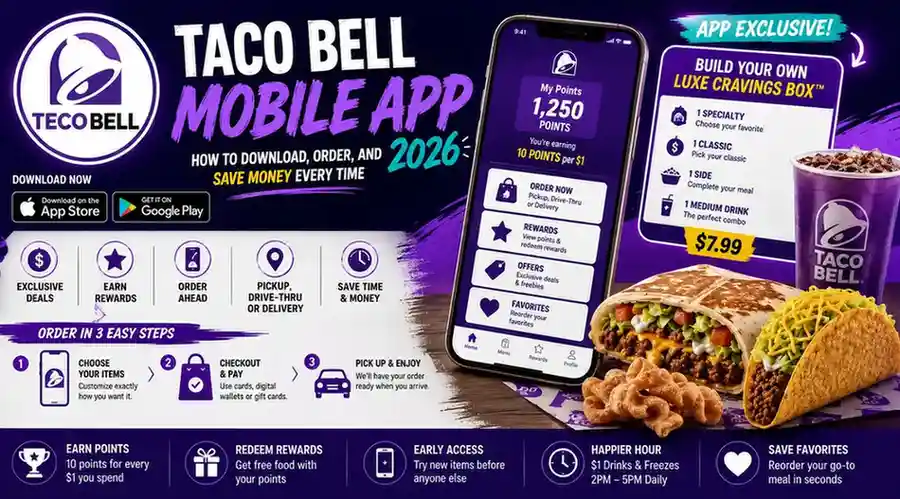
The Taco Bell mobile app is a free application for iOS and Android that lets you browse the full menu, customize items, place orders for pickup or delivery, earn and redeem rewards points, access exclusive deals, and save your favorite orders for faster checkout. It is the single most powerful tool Taco Bell offers for saving money and customizing food, and it is the only way to access certain menu items like the Build Your Own Luxe Cravings Box.
The app connects directly to your nearest Taco Bell location and shows real-time pricing and availability. If your local store is out of an ingredient or has stopped carrying a limited-time item, the app reflects that before you place your order. You are not guessing based on a static menu board that may be three months out of date.
How to Download and Set Up the App
The setup process takes under three minutes. Here is the step-by-step.
Step 1: Open the Apple App Store if you have an iPhone or the Google Play Store if you have an Android phone. Search for “Taco Bell.” The official app is published by Taco Bell Corp. Look for the bell logo. Do not download anything from a third-party publisher claiming to offer Taco Bell deals—those are not official.
Step 2: Tap “Install” or “Get.” The app is free and takes up minimal storage space.
Step 3: Open the app once it finishes downloading. You will see a welcome screen with two options: “Sign In” or “Create Account.” Tap “Create Account.”
Step 4: Enter your email address, create a password, and provide your first and last name. The app will also ask for your phone number. This is optional but recommended—it helps with order recovery if something goes wrong.
Step 5: The app will ask for location permissions. Allow this. The app uses your location to find the nearest Taco Bell and show you accurate pricing and menu availability. If you deny location access, you can still use the app, but you will have to manually enter a zip code or address every time you want to place an order.
Step 6: You are now enrolled in Taco Bell Rewards automatically. There is no separate sign-up. Your account is active, and you start earning points on your very first order.
That is the entire setup. One email, one password, one permission toggle. You are ready to order.
Placing Your First Mobile Order
If you have ever ordered food through an app, the Taco Bell app will feel familiar. If you have not, it takes about two minutes to learn.
Step 1: On the home screen, tap “Order.” The app will ask how you want to receive your food. The options are Pickup, Drive-Thru, or Delivery. Pickup means you park and walk inside. Drive-Thru means you pick up at the speaker and window. Delivery brings the food to your address.
Step 2: Select your location. The app shows the nearest Taco Bell based on your location permissions. If multiple locations are nearby, it lists them with distances and current hours. Tap the one you want.
Step 3: Browse the menu. The app organizes items by category—Tacos, Burritos, Specialties, and so on—just like the menu board in the restaurant. You can scroll through categories or use the search bar to find a specific item by name.
Step 4: Tap any item to see its description, price, calorie count, and customization options. This is where the app becomes more powerful than ordering at the counter. You can see exactly what comes on an item before you order it.
Step 5: Tap “Add to Bag.” The item goes into your order. You can add as many items as you want.
Step 6: When you are done, tap the bag icon and review your order. The app shows the total including tax. If you have any rewards points to redeem or promo codes to apply, this is where you do it.
Step 7: Tap “Checkout.” Select your payment method. The app accepts credit cards, debit cards, Apple Pay, Google Pay, and Taco Bell gift cards. If you have a gift card saved, you can apply it here.
Step 8: Place your order. The app gives you an estimated pickup time, usually 5 to 10 minutes depending on how busy the location is. Head to the restaurant. If you chose Drive-Thru, give your name at the speaker. If you chose Pickup, walk inside and grab your order from the counter or mobile order pickup shelf.
How to Build Your Perfect Order
The customization options in the Taco Bell app are more granular than most people realize. You can modify almost every component of almost every item.
Remove ingredients. Tap any item, scroll down to the customization section, and toggle off anything you do not want. Cheese, sour cream, lettuce, tomatoes, jalapeños—each ingredient has its own switch.
Add extras. You can add extra protein, extra cheese, guacamole, creamy sauces, and more. Each addition shows its cost and updated calorie count in real time.
Swap proteins. On most items, you can swap seasoned beef for black beans, grilled chicken, steak, or slow-roasted Cantina Chicken. The beef-to-beans swap is free. Swapping to a premium protein like steak or Cantina Chicken adds a small upcharge, usually $1.00 to $1.50.
Order Fresco Style. There is a single toggle for “Fresco Style” on most items. Tap it, and the app automatically removes cheese, sour cream, and mayonnaise-based sauces and replaces them with pico de gallo. This cuts 50 to 100 calories per item and makes most vegetarian items vegan. It costs nothing.
Change the shell or tortilla. Some items let you swap the shell type. You can change a Crunchy Taco to a Soft Taco or vice versa on compatible items.
The customization screen updates the calorie count and price in real time as you make changes. You know exactly what you are ordering and exactly what you are paying before you check out.
Pickup, Drive-Thru, and Delivery Options
The app supports three fulfillment methods, and each works slightly differently.
Pickup. You park, walk inside, and grab your food from the counter. The app gives you an estimated ready time. Your name appears on the order, and you pick it up like any takeout order. This is usually the fastest option because there is no drive-thru line to wait in.
Drive-Thru. You place your order in the app, drive to the restaurant, and give your name at the speaker. The kitchen starts preparing your order when you arrive, not when you place it, so the food is hot and fresh. Some locations use geofencing to detect when you are approaching and begin preparation automatically.
Delivery. You enter your delivery address, and the app shows you which locations deliver to you. Delivery is fulfilled through DoorDash on the backend, but you place the order entirely within the Taco Bell app. Delivery fees vary by distance and location. Tips go to the driver. Delivery orders earn Taco Bell Rewards points, but third-party delivery orders placed directly through DoorDash or Uber Eats do not.
The Build Your Own Luxe Cravings Box
This is the single best value on the Taco Bell menu, and you cannot order it any other way. The Build Your Own Luxe Cravings Box is an app-exclusive combo priced at $7.99.
Here is how it works. You select one specialty item from a list that includes the Crunchwrap Supreme, Cheesy Gordita Crunch, and Mexican Pizza. You select one classic item from a list that includes the Crunchy Taco, Soft Taco, and Spicy Potato Soft Taco. You select one side from options like Chips and Nacho Cheese Sauce, Cinnamon Twists, or Cheesy Fiesta Potatoes. You select one medium fountain drink.
If you ordered those four items separately, the total would be $10 to $13 depending on your choices. The box bundles them for $7.99. That is a savings of $2 to $5 every single time you order it.
The Build Your Own Luxe Box appears at the top of the menu in the app, usually under “Online Exclusives” or featured prominently on the home screen. If you cannot find it, use the search bar and type “Luxe.”
Taco Bell Rewards Inside the App
The app is where Taco Bell Rewards lives. You cannot manage Rewards without it.
Earning points. Every order placed through the app automatically earns 10 points per dollar spent on the pre-tax subtotal. If you order in-store, scan your app barcode at the register or drive-thru before paying to earn points on that transaction.
Checking your balance. Tap the “Rewards” icon at the bottom of the screen. Your current point total appears at the top. The screen also shows your available rewards and your redemption history.
Redeeming points. In the Rewards tab, tap any available reward to add it to your bag. Rewards are available at 250 points, 500 points, and 1,000 points. We have a complete breakdown of every redemption tier and strategy in our Taco Bell Rewards guide.
Tracking expiration. Points expire 12 months after they are earned. The Rewards tab shows your upcoming expiration dates so you can redeem points before they disappear.
App-Exclusive Deals and Offers
The “Offers” tab in the app—sometimes labeled “Deals”—contains discounts and freebies that are not available any other way. These change regularly, sometimes weekly.
Typical offers include free delivery on orders over a certain amount, dollar-off discounts on specific items or categories, and free item offers with minimum purchase. Some offers are targeted based on your order history. If you order a lot of breakfast items, you might see breakfast-specific deals. If you frequently order combos, you might see combo discounts.
Always check the Offers tab before placing an order. Tapping an offer applies it automatically to your bag. You can only use one offer per order, so choose the one that saves you the most money on that particular transaction.
Offers are separate from Rewards points. You can use an offer and still earn points on the same order. You can also redeem a Rewards reward and use an offer simultaneously, as long as the offer applies to a paid portion of the order.
Early Access to New Menu Items
Taco Bell Rewards members often get access to new limited-time menu items 24 to 48 hours before those items appear on the physical menu board at most locations.
When a new LTO is about to launch, the app displays it prominently on the home screen with a tag like “Early Access” or “App Exclusive.” You can order it immediately through the app and pick it up before anyone ordering at the counter even knows it exists.
This is not a guaranteed benefit for every single new item, but it happens frequently enough to mention. If you care about trying new Taco Bell creations before your friends do, the app is the only reliable way to get early access.
Happier Hour and App Ordering
Happier Hour runs daily from 2 PM to 5 PM at participating locations. Medium fountain drinks and regular Freezes are priced at $1 each during this window.
The app makes Happier Hour easier to navigate. When you open the app during Happier Hour at a participating location, the discounted drinks appear automatically with updated pricing. You do not need a code or a coupon. The discount applies at checkout.
If you are ordering during Happier Hour, always check the app first to confirm your specific location participates. Not every franchise location honors Happier Hour pricing, and the app reflects whether your selected store does.
Saving Payment Methods and Favorite Orders
Two features in the app save significant time on repeat orders.
Saved payment methods. The app stores credit cards, debit cards, Apple Pay, Google Pay, and Taco Bell gift cards. You can save multiple payment methods and choose which one to use at checkout. Saved gift card balances appear automatically, so you always know how much is left on each card.
Favorite orders. After placing an order, the app gives you the option to save it as a favorite. You can name the order—something like “Usual Lunch” or “Late Night Order”—and reorder it with two taps the next time. The app remembers every customization, so you do not have to rebuild your Fresco Style Bean Burrito from scratch every visit.
To access saved orders, go to your account and tap “Favorites” or look for the “Reorder” button on the home screen.
Finding Locations and Checking Hours
The app includes a store locator that is more accurate than Google Maps or Apple Maps for Taco Bell-specific information.
Tap the location icon. The app shows nearby stores with addresses, distances, and current hours. Tap any location to see more details: whether the dining room is open, whether the drive-thru is 24 hours, and whether delivery is available from that store.
The hours displayed in the app are pulled directly from Taco Bell’s internal systems and reflect holiday hours, temporary closures, and schedule changes that third-party map apps might miss. If you are heading to Taco Bell late at night or on a holiday, check the app first.
Common App Problems and How to Fix Them
After years of using the Taco Bell app regularly, I have run into most of the common issues. Here is what goes wrong and how to fix it.
The app crashes during checkout. This is the most frustrating bug, and it usually happens when the app has been open for a long time or when your internet connection is unstable. Force close the app, reopen it, and try again. Your bag usually saves automatically, so your order should still be there. If the crash keeps happening, check for an app update in the App Store or Google Play Store. Outdated versions are more prone to crashing.
Payment fails even though your card is valid. This can happen if the billing address in the app does not match the billing address on file with your bank. Double-check your saved payment method and make sure the address is correct. It can also happen if your bank flags the transaction as suspicious. Try a different payment method or contact your bank.
The app shows the wrong location. If the app keeps defaulting to a location that is not your nearest store, your location permissions may be off. Go to your phone’s settings, find the Taco Bell app, and make sure location access is set to “While Using the App” or “Always.” You can also manually set a favorite location in the app by tapping the location icon and selecting your preferred store.
Rewards points are missing from an order. Points post immediately after the transaction completes. If they do not appear, close and reopen the app. If they are still missing, check your order history to confirm the transaction processed. For in-store orders where you forgot to scan your barcode, submit a missing points request within 24 hours by uploading your receipt.
A menu item is grayed out or missing. This usually means your selected location is out of that item or has stopped carrying it. Switch to a different nearby location and check if the item appears. If it is a limited-time offer, it may have ended at that specific store earlier than the advertised end date.
Frequently Asked Questions (FAQs)
Is the Taco Bell app free?
Yes. The app is free to download and use. There are no subscription fees or in-app purchases.
Can I use the Taco Bell app without creating an account?
You can browse the menu without an account, but you need to create one to place an order. Creating an account also enrolls you in Taco Bell Rewards.
Does the app work on both iPhone and Android?
Yes. The app is available for iOS in the Apple App Store and for Android in the Google Play Store.
Can I use Taco Bell gift cards in the app?
Yes. Add your gift card to the payment methods section and select it at checkout. The app shows your remaining balance.
Can I order delivery through the app?
Yes. Select “Delivery” at checkout and enter your address. Delivery is fulfilled by DoorDash. Delivery fees and tips apply.
Does the app show accurate pricing for my location?
Yes. The app displays real-time pricing based on your selected location, not national averages.
Can I customize items in the app?
Yes. The app allows you to remove ingredients, add extras, swap proteins, and apply Fresco Style to most items.
What is the Build Your Own Luxe Cravings Box?
An app-exclusive combo priced at $7.99. You choose one specialty item, one classic item, one side, and one medium drink. It is the best value on the entire menu.
Do I earn Rewards points on app orders?
Yes. All app orders automatically earn 10 points per dollar spent.
How do I redeem Rewards points in the app?
Tap the Rewards tab, select an available reward, and add it to your bag. Redeemed items appear at no charge during checkout.
Can I save my favorite orders?
Yes. After placing an order, save it as a favorite. You can reorder it with two taps on future visits.
Does the app accept Apple Pay and Google Pay?
Yes. Both are accepted at checkout.
What if the app crashes while I am ordering?
Force close the app and reopen it. Your bag usually saves automatically. Check for app updates if the problem persists.
Can I use app deals and Rewards points on the same order?
Yes. You can apply one offer and redeem one or more Rewards items on the same order.
Does the app work internationally?
The Taco Bell app is designed for US locations. International availability varies by country.
If you have questions about this guide or the Taco Bell app we did not cover, reach out through our Contact Us page. For our complete legal policies, read our DMCA Policy, Cookie Policy, and Privacy Policy. Return to our homepage
Final Thoughts
The Taco Bell app is not perfect. It crashes occasionally. Some menu layouts could be more intuitive. The delivery fees are not always clearly communicated before checkout. But it does the thing that matters most—it saves you money and gives you control over your order that you cannot get at the counter.
The Build Your Own Luxe Cravings Box alone justifies downloading the app. At $7.99 for four items, it is the best dollar-for-food value on the entire menu, and you cannot get it any other way. Add in Rewards points that accumulate into free food, exclusive deals that appear in the Offers tab, and the ability to customize every ingredient before your order reaches the kitchen, and the app becomes less of a convenience and more of a necessity for anyone who eats at Taco Bell with any regularity.
Download it. Create an account. Place your first mobile order. Give your name at the speaker instead of reciting a complicated order. And watch the points stack up in the background while you eat exactly what you wanted, exactly how you wanted it.